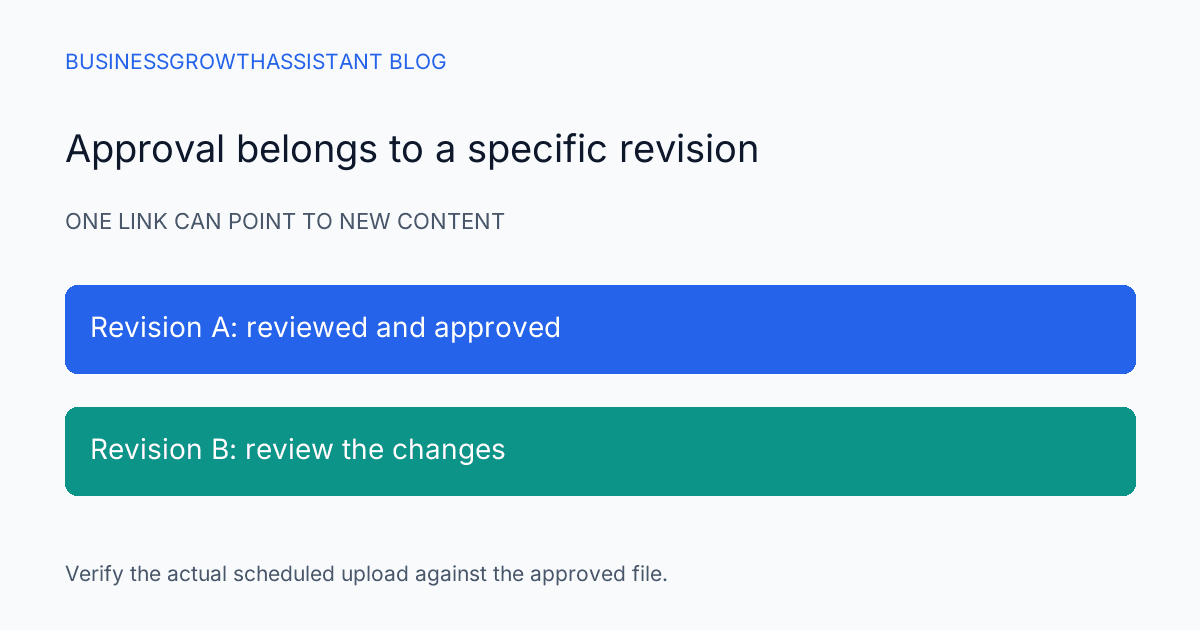
A manager approves a campaign graphic. Later, a designer replaces the file behind the same shared link. The content scheduler opens that link and publishes the latest version, assuming the approval still applies. The URL did not change, but the material being published did.
This is a version-control problem in an ordinary content workflow. The team needs to connect approval to the asset actually reviewed and make later changes visible. A filename containing final is not enough, and a link to a folder leaves even more room for interpretation.
Define the approved object
Start with the specific asset: a graphic, PDF, video, or other file intended for a named placement. Record the campaign, destination, format, and revision that the reviewer saw. If the approval includes accompanying copy, identify that copy separately so a revised caption does not inherit approval from an unchanged image.
For a hypothetical webinar promotion, the approved object might be a square graphic with a particular date and speaker list plus a caption in the scheduling sheet. A new speaker headshot or corrected date can be a meaningful revision. The approval record should make it possible to identify that change without relying on the designer's memory.
Understand the storage behavior
Google Drive documents version management for uploaded files and distinguishes it from the version history used by Google Docs, Sheets, and Slides. Its guidance says older uploaded-file versions may be removed after 30 days or when 100 newer versions exist, unless retained using the available keep-forever control. Google Drive version guidance
That distinction matters for a marketing team storing both native documents and exported assets. Do not assume that every file type has the same history or retention behavior. Inspect the type of object being approved and use the supported version evidence for that object. If the process relies on an older version remaining available, preserve it deliberately.
Keep working material separate from approved material
Use a clear workflow state such as working, ready for review, approved, or superseded. The state should describe the revision, not the entire folder forever. A working file can continue changing after an approved export is captured, but the scheduler needs a stable reference to the approved export.
Avoid creating a maze of nearly identical files with names such as final-new-final. A concise revision identifier and a clear status record are easier to audit. Where the storage system supports a retained version, record it. Where the team uses a separate approved export, give it a stable filename and preserve the relationship to its source.
The goal is not to make every small team adopt a complex asset platform. A simple register can work if it identifies the exact file, revision, reviewer, approval time, and intended placement. The register must be maintained when the file changes; otherwise it becomes another stale document beside the asset.
Verify the file at scheduling time
Before scheduling, open the approved asset and compare it with the approval evidence. Check the content that matters for the placement: dates, names, offer, image crop, and any included link or code. Confirm that the downloaded or selected file is the same revision, especially if the scheduler requires an upload rather than a live Drive link.
A thumbnail is not enough for a multipage PDF or video. Review the relevant pages or playback points at the level the approval requires. If the final export differs from the preview that was approved, route that difference to the reviewer instead of assuming the export process could not have changed anything.
Also confirm that the scheduler has access to the file through the intended account. An owner may see an asset that a delegated user cannot download. Resolve the permission for the actual work without making the folder public merely to simplify one upload.
Decide which changes require another review
The content owner should define the boundary. Replacing a broken export with an identical rendering may need a technical check; changing an offer, date, claim, or brand treatment may require renewed editorial approval. The assistant should not have to invent that distinction during a deadline.
For each revision after approval, record what changed and whether it affects the approved meaning or presentation. If the team permits limited corrections without another review, document the allowed class of correction and who may make it. A broad instruction to fix anything small invites inconsistent judgments.
When approval is renewed, mark the older approval as superseded for the relevant placement. Do not delete the history if it explains a scheduled or already published version. The record should show which revision was valid at the time of the action, not rewrite the past to make the workflow appear cleaner.
Handle already scheduled content explicitly
A new file version in Drive does not establish that an uploaded scheduler asset changed. Inspect the scheduled item itself. If the team intends to replace it, use the scheduler's supported process and verify the resulting preview. Treat the Drive revision and the scheduled upload as separate objects until the connection is confirmed.
For a hypothetical event-date correction, the assistant should check every scheduled placement that used the old asset. Updating one source file may leave older uploads in several channels. Maintain a short placement list with the status of each replacement so the correction does not depend on someone remembering every queue.
If content is already public, the owner should decide whether to edit, replace, or add a correction according to the channel and the nature of the error. The assistant can collect the affected URLs and prepare the options. A changed source file alone is not evidence that the public audience now sees the correction.
Make the final handoff inspectable
A content scheduling assistant can maintain the revision register and verify the scheduled asset. The content approval workflow explains the broader review process; this check addresses the narrower risk that a stable link can hide changing content.
The completed handoff names the approved revision and every intended placement, confirms the actual scheduled file, and records any later replacement. This gives the next person a concrete answer to the question that matters: which version did we approve, and which version will the audience receive?
Sources
- Google Drive Help, Check activity and file versions, checked October 2, 2026.