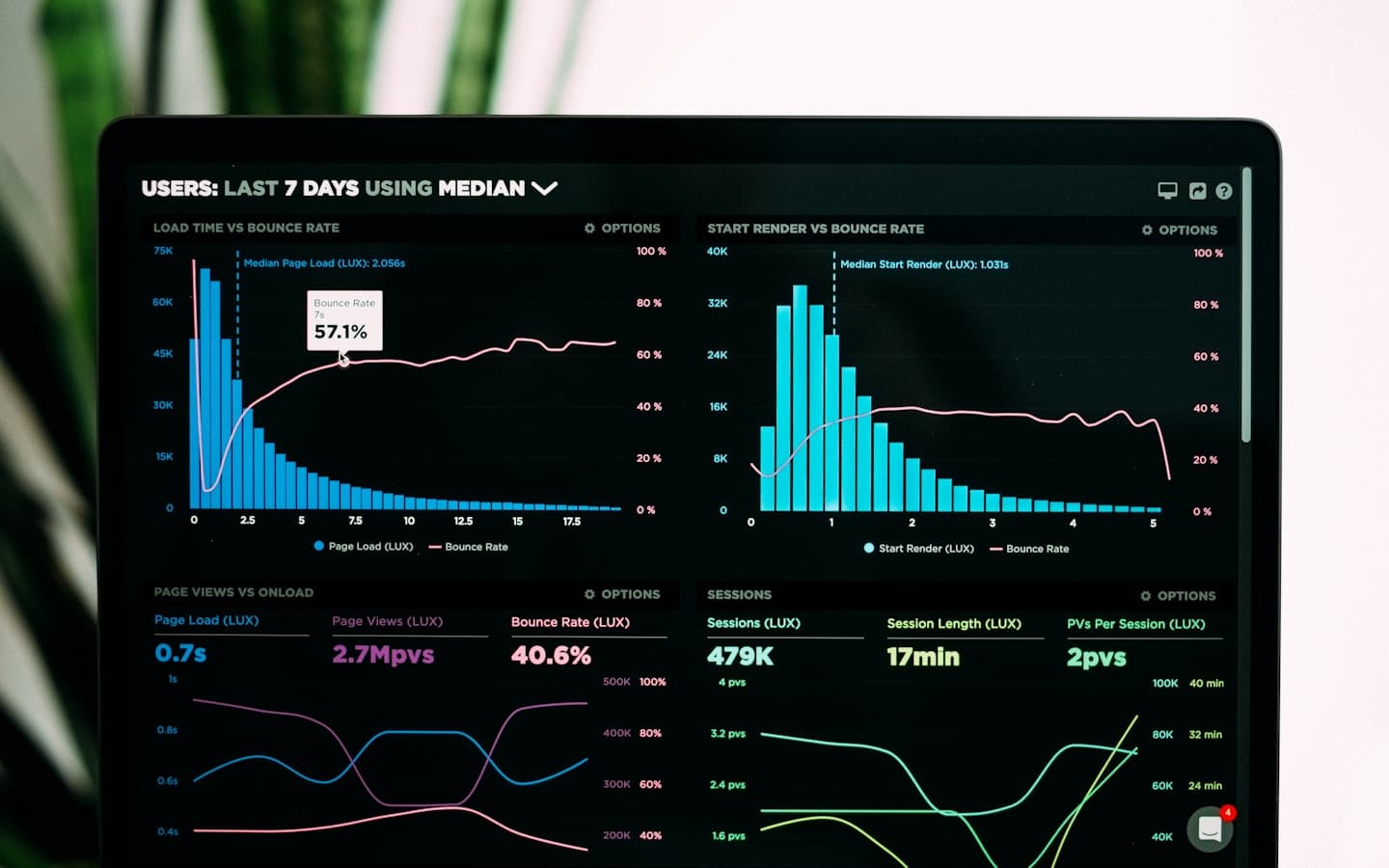
A blended data source in Looker Studio can combine ad spend, website sessions, and CRM leads into one useful view. It can also double-count, drop rows, and quietly mislead a team for months. The risk is highest when the blend is built once and never reviewed. A short, repeatable check of the joins and totals keeps a shared dashboard honest.
Confirm what the blend is meant to produce
Before inspecting the technical setup, write down the question the report answers. For example: how many leads did we get per channel per week, and what did each cost? That determines which data sources are needed, which field is the join key, and what the correct total should be.
A blend that tries to answer two unrelated questions often joins on the wrong key or includes a source that does not belong. Naming the purpose makes it obvious whether a source is contributing to the answer or just adding noise.
Check the join key and join type
Looker Studio blends join data sources on one or more shared keys, and the join type determines what happens to rows that only appear in one source. A left outer join keeps every row from the left source; an inner join keeps only rows present in both. Choosing the wrong type is the most common cause of missing or inflated numbers.
For each join in the blend:
- Confirm the key exists and has the same format in both sources. A date stored as text in one source and as a date in another will not match cleanly.
- Confirm the join type matches the intent. If you want every campaign even when it had no spend, use a left join from the campaign list.
- Check for key duplication. If one source has multiple rows per key, an inner join multiplies the other source's rows and inflates metrics.
Looker Studio's documentation at support.google.com/looker-studio explains blend joins and join types; confirm the current behavior there, because the editor's labels and options change over time.
Reconcile totals against each source
This is the check that catches almost everything. Pick a recent period and compare the blended report's total for a metric, such as sessions or leads, against the same metric read directly from its source. If the blend shows 12,000 sessions and the source shows 11,400, the difference needs an explanation before the dashboard is trusted.
Do the same for a second metric from a different source. A blend that is right on one source and wrong on another usually has a join or filter problem specific to that source. Record the reconciled numbers and the date of the check so future readers know the dashboard was verified.
Watch for double counting across sources
Double counting happens when two sources both contain the same underlying event. Sessions from an analytics source and impressions from an ads source are different events and should not be summed. Leads from a CRM and form submissions from a website tool may describe the same person twice.
Decide which source is authoritative for each metric and report from that one. If you need a combined total, define the rule that prevents overlap, such as using only the CRM for lead counts and only ads platforms for spend. Write the rule in the report notes so a viewer does not add the two columns together.
Use a second chart as a control
When a blended source is hard to reconcile, build a small control chart from one source only and place it next to the blended chart. If the two disagree, the blend is the suspect, not the source. This isolates the problem quickly and gives you a defensible number to show the team while the blend is fixed.
You can also total each source in its own table and compare against the blend's row-level detail. A single campaign or channel that looks wrong points to a join issue on that key, which is much easier to fix than a blanket rebuild.
Check date ranges, timezones, and filters
Blended sources can inherit date ranges from the report, from a chart, or from a fixed setting, and each date field may sit in a different timezone. Confirm that all date fields used in joins and charts resolve to the same calendar, and that the report's date range applies consistently.
Then review the filters. A filter scoped to one chart behaves differently from one scoped to the whole page, and a filter on a metric that only exists in one source can silently remove rows from the blend. Test by clearing filters and confirming the totals change as expected.
Keep the blend documented and reviewed
Write a short note in the report describing the sources, the join keys, the join types, the authoritative source for each metric, and the last reconciliation date. That note turns a mysterious dashboard into a maintainable one and makes it far easier to hand off.
Review the blend after any change to a connected source, a renamed field, or a new campaign structure. A source change is the most likely trigger for a silent break. The operator can own checking joins, reconciling totals, and flagging discrepancies; the owner decides which source is authoritative and approves structural changes. To have this maintenance handled for you, review how we run analytics and dashboards, or request a consultation with your current reports.