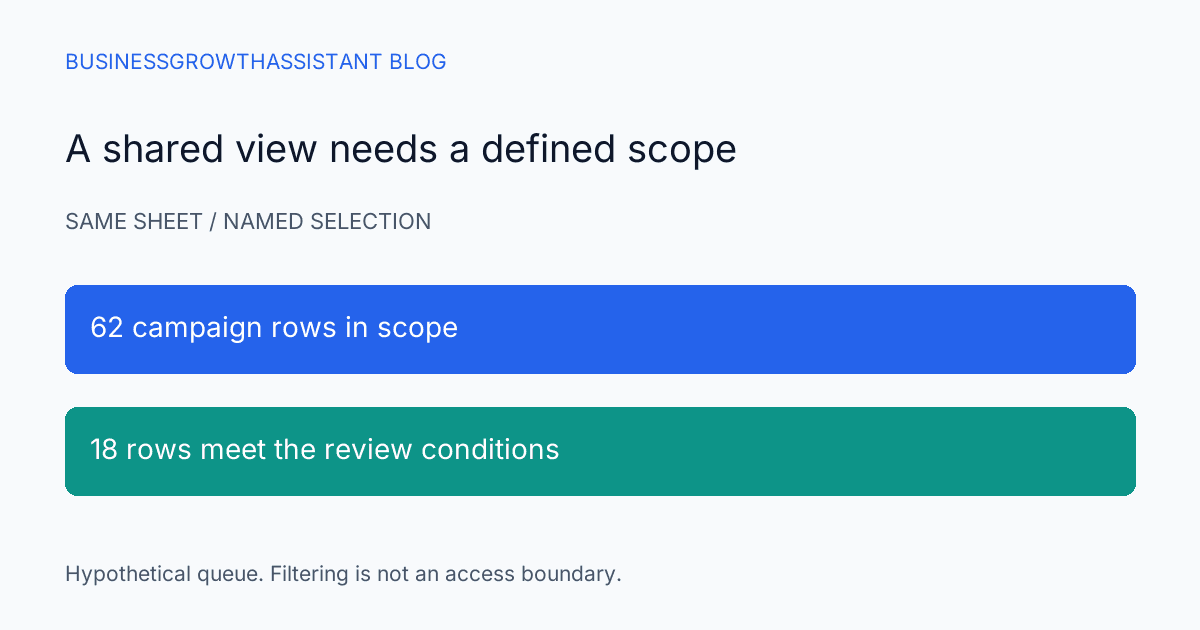
A manager opens the campaign spreadsheet and sees 18 rows. The assistant who prepared it remembers reviewing 62. Neither person necessarily deleted anything. They may be looking at different filters, different ranges, or different interpretations of what belongs in the report. A link to the workbook does not always carry the complete reporting context.
Filter views can make this handoff clearer, provided the team treats the view as a saved query over shared data rather than a separate dataset. The job is to explain which rows qualify, confirm that the range covers the intended records, and give the reader a way to reproduce the selection.
Name the question the view answers
Start with a reporting question such as which paid campaigns need a creative refresh this week. Translate it into fields and conditions before clicking filters. For example, the view might require an active campaign, an assigned owner, and a review date on or before the reporting cutoff. The exact conditions should come from the campaign process.
A name such as Active creative reviews is more useful than New view 3. Add the cutoff convention in the report note if it changes the interpretation. “Due this week” can mean different things on Monday and Friday, especially when teams operate across time zones. A saved view name should not conceal that moving boundary.
Understand what the feature preserves
Google documents filter views as a way to save and share named filters while allowing people to work with different views. A viewer without edit permission can create a temporary filter view, but it is not saved. Google also describes sharing the URL after applying the intended view. Google Sheets filter guidance
Those capabilities support a reporting handoff, but they do not make the visible subset a confidential copy. A filter is not a permission boundary. People who can access the underlying sheet may be able to view other rows according to their access. If the recipient should receive only an approved subset, use the organization's separate sharing or export process.
Check the range before checking the result
A correct filter over an incomplete range can produce a convincing but incomplete report. Review the range and confirm that newly added rows and required columns are included. Check a recently entered campaign near the bottom of the sheet and a record at the boundary of the selected range.
Also inspect header handling and blank rows. A sheet built by pasting several exports can contain repeated headings or gaps that make the range harder to understand. Resolve the structure in a controlled working copy if necessary, preserving the original source. Do not silently remove rows from a shared operational sheet just to make the filter easier to apply.
Use a known included record and a known excluded record to test the logic. If the included record disappears, determine which condition excludes it. If the excluded record remains, inspect its actual field value. Trailing spaces, inconsistent status labels, or missing dates can expose a data-quality issue rather than a filter-feature defect.
Make the selection reproducible
The handoff note should contain the workbook and view link, selected range, conditions, sort order, and observation time. It should also explain whether the view will update as the underlying data changes. A live working view is useful for action queues, while a fixed snapshot may be necessary to support a past decision.
For a hypothetical campaign review, record that 18 of 62 campaign rows matched the conditions at the time of review. That does not mean the other 44 were checked and found healthy. They may simply be outside the selected scope. Explain the scope in ordinary language so a reader does not confuse a filtered queue with a full audit.
If the owner needs a fixed record, save an approved snapshot separately and name it by the reporting period. Retain the view for ongoing work. This gives the team both a current queue and evidence of what was visible at the meeting, without pretending one artifact serves both purposes equally well.
Test with the recipient's access
Open the view through an account or access level representative of the recipient, using an authorized test. Confirm that the link reaches the intended sheet and view, that required columns are visible, and that the reader can perform the expected action. An editor's successful test does not establish what a viewer will experience.
If the recipient needs to update a status, verify that the workflow provides the right editing access. If they only need to review, do not grant broader access to avoid explaining the view. The permission should follow the job. A reporting convenience is not a reason to expand access to an entire prospect workbook.
A recipient who sees different results may have opened an older link, changed the view, or encountered updated data. Ask for the view name and observation time before interpreting the difference as missing work. Those two facts often narrow the investigation more quickly than exchanging screenshots of partial tables.
Keep formulas and totals honest
Inspect any headline total that appears beside the filtered rows. Determine whether it is intended to summarize all records or only the selected set, then verify that behavior with a small example. A visible subset of campaigns next to an all-campaign spend total can mislead a reader even when both calculations are technically correct.
Do not assume sorting will preserve the business meaning of every cell reference. Google notes that a formula pointing to a cell within a filtered range continues to point to that cell when the range is sorted. For important lookup or comparison work, use the record identifiers and formula design appropriate to the workbook rather than relying on a remembered row position.
This concern becomes more important when the assistant copies selected rows into another report. Preserve the campaign key and reporting period so the copied data can be reconciled. A row's position is not a durable identity for a campaign that can move whenever a user sorts the sheet.
Close the handoff with an action
A marketing analytics assistant can maintain the view, investigate mismatches, and prepare the report note. The owner should define what happens to each item in the queue and who decides when the review is complete. Otherwise the filter becomes an attractive list that nobody acts on.
For broader metric definitions, consult the marketing dashboard guide. For this task, the completion test is narrower: the intended reader can reproduce the selection, understand what it excludes, and take the authorized next action. That is a useful handoff, even when the underlying spreadsheet is simple.
Sources
- Google Docs Editors Help, Sort and filter your data, checked October 2, 2026.