A dashboard says yesterday's campaign produced twice as much revenue as the order system. The export finished without an error, every order number looks familiar, and the arithmetic in the final column is correct. The problem may be the relationship between the tables. When one order matches several rows on the other side of a join, the order's revenue can appear several times. A marketing assistant needs to test that relationship before sending the weekly report.
This guide proposes a small reconciliation exercise for teams combining spreadsheets or dashboard sources. The numbers below are illustrative, not campaign results. The goal is to let an assistant diagnose the report while the marketing owner retains responsibility for the metric definition and any decision to change spending.
Name what one row represents
Write a sentence above each input: one row per order, one row per order item, one row per campaign per day, or one row per contact. A column called campaign does not make two tables compatible. One table may contain campaign totals and another may contain individual leads who encountered that campaign. Joining on campaign name can repeat the total once for every matching lead.
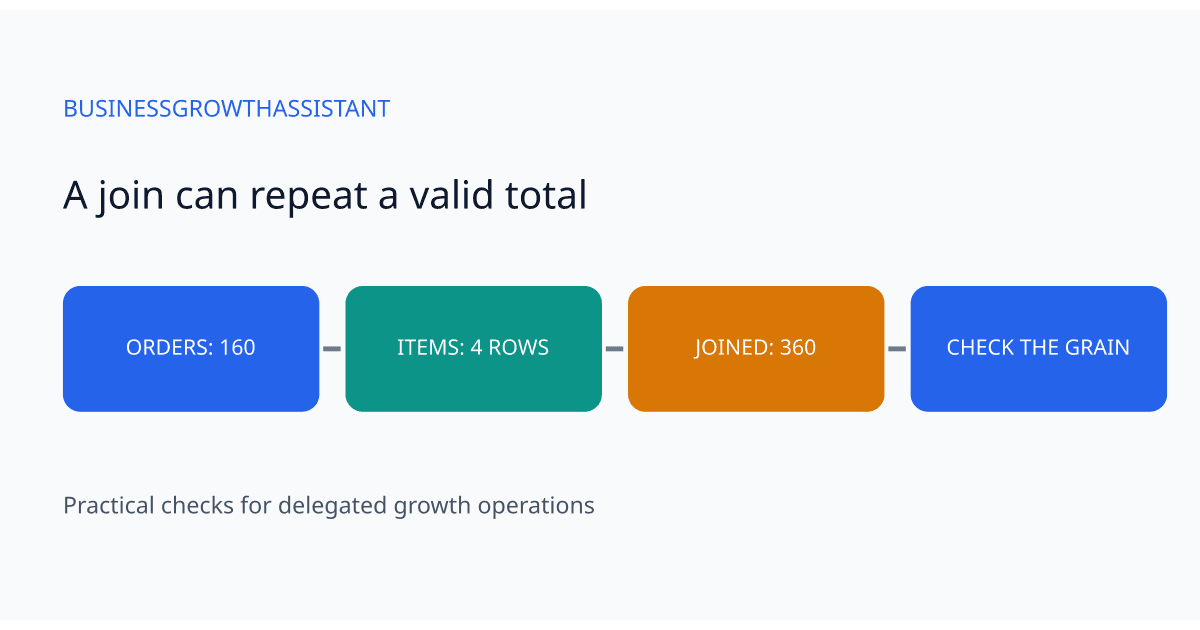
Take a simple example. The order table contains order A for 100 dollars and order B for 60 dollars. The item table contains three items for A and one for B. Joining the tables on order number creates four rows. Summing the repeated order revenue produces 360 dollars: three copies of 100 plus one copy of 60. The original order total was 160 dollars. Neither input needs to contain a duplicate for the combined report to be wrong.
The assistant should record both input row counts, the count of distinct order identifiers, and the source revenue total before making the join. These become comparison values. A screenshot of the finished chart cannot replace them because it shows the result after the relationship has already changed the data.
Test the key before using it
For the intended lookup table, group by the proposed key and count the rows for each key. Any count above one deserves an explanation. Multiple rows may be legitimate: an order can contain several items, a contact can participate in several campaigns, and a campaign can have a different record each day. The question is whether those multiple matches belong in the calculation you are building.
Do not use a remove-duplicates command merely to make the counts equal. Two rows with the same order number and different products are separate facts. Deleting one hides a modeling problem by discarding valid information. Preserve the input export and investigate the expected relationship first.
If the report asks for revenue by campaign, a practical option may be to summarize item data to one row per order before joining it to order revenue. If it asks for revenue by product, the owner must define how discounts, shipping, and tax are allocated. The assistant cannot invent that allocation by copying the full order value into each product row.
Trace four records by hand
Choose a normal record, a record with several matches, a missing match, and a blank identifier. Follow each from the source exports to the joined result. For the multi-match record, explain exactly which columns caused the expansion. For the missing record, determine whether it disappeared, stayed with blank fields, or was assigned an unintended default.
Suppose campaign C has no matching CRM records. An inner join may remove it from the result even though advertising spend exists. A report built from the surviving rows can then understate total spending. A left join can preserve the spend row, but it does not solve repeated revenue on matched rows. Join direction and key uniqueness are separate checks.
For blank identifiers, create an exception group instead of treating a blank as a known customer or campaign. The owner should decide whether unresolved records remain in an unallocated category. Include their count and value in the report so that the apparent precision of the breakdown does not conceal missing information.
Reconcile before formatting the chart
Compare total revenue, total spend, input records, distinct business identifiers, and unmatched records before and after the transformation. The expected equality depends on the report. A filtered regional report will not equal a worldwide export, but its filters should explain the difference. Write the expected result before examining the output; otherwise a plausible number can become its own justification.
In the example above, a campaign-level report should still account for 160 dollars of order revenue. If a proposed correction produces 160 dollars, inspect the individual orders as well. A total can match accidentally when one record is duplicated and another is lost. Passing the aggregate check and the four-record trace gives stronger evidence than either alone.
Keep the comparison beside the working file. A compact note might say: two orders, four items, two distinct order IDs, revenue 160 dollars before and after, no unmatched orders. Another person can reproduce those facts without reading every formula. Where there are exceptions, list their identifiers in the restricted working file rather than adding customer details to a broadly shared report.
Apply the same reasoning in dashboards
Google's Data Studio documentation explains that blending joins tables and that selected dimensions can affect grouping before the join. That means the fields present in the blend are part of the calculation, not merely display choices. An assistant should inspect both the selected dimensions and the join condition when a chart changes unexpectedly. The documentation establishes product behavior; the reconciliation procedure here is an operating recommendation.
A useful diagnostic copy starts with the business identifier, the join fields, and the metric. Remove decorative chart settings while investigating. Add dimensions back one at a time and repeat the total comparison. Record which addition changed the result. This isolates a specific transformation for the reporting owner to approve rather than producing a vague complaint that the dashboard is unreliable.
Do not repair only the visible chart if several charts share the same blend. Identify the affected reports and compare their totals after the correction. A small change to a shared relationship may alter a lead-volume chart as well as the revenue chart that first exposed the problem.
Hand back a decision, not a mystery
The assistant's handoff should include the intended row meaning, the key that was tested, the observed mismatch, and the proposed treatment of unmatched records. Attach a small anonymized example showing why the current join fails. Ask the owner to resolve business choices such as product allocation or attribution, while routine validation remains delegated.
Once approved, preserve the working transformation and the reconciliation checks together. Repeat them when the export schema, join fields, or report grain changes. A trustworthy report is one whose totals can be traced through those changes, not one that merely looks stable on the screen.
Teams delegating recurring reporting can use this exercise when defining a marketing analytics assistant's scope. Bring one troublesome report and its input exports to the initial consultation so the discussion starts with an observable problem.
Source
Google Cloud, How blends work in Data Studio, checked October 2, 2026. Product behavior is summarized above; examples and reconciliation recommendations are original analysis.